Connecting a domain name to web hosting is one of the first steps in launching a website. Your domain is the address visitors type into a browser, while hosting is the server that stores and delivers your website files. This beginner-friendly guide explains two reliable ways to connect them: changing nameservers or updating DNS records.
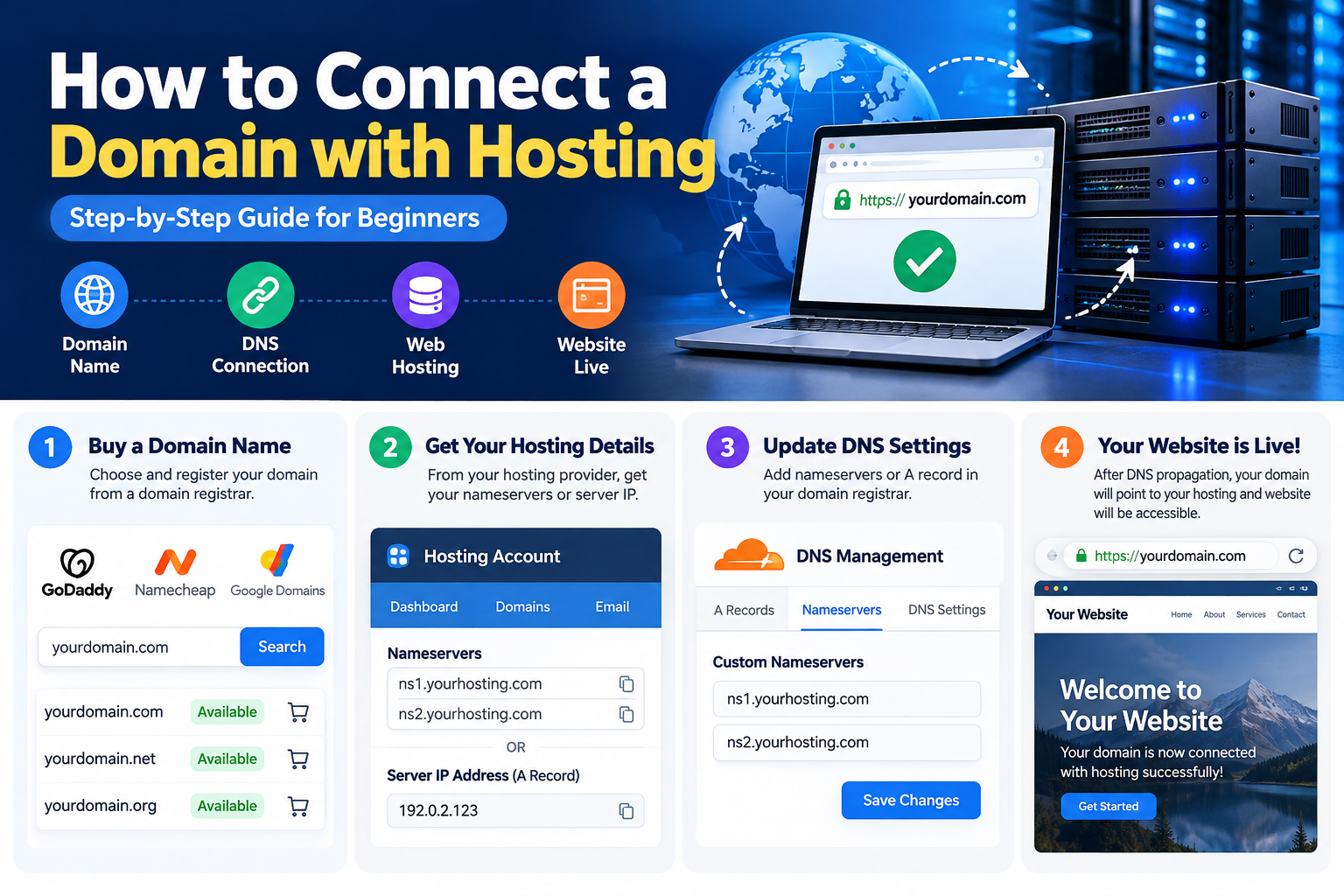
Before you begin: what you need
- A registered domain name and access to its registrar dashboard.
- An active web hosting plan with your website configured.
- Your hosting provider’s nameservers or the correct server IP address.
- Access to DNS management, and ideally a backup of your existing DNS records.
Step 1: Find your hosting connection details
Log in to your hosting control panel and locate the domain setup, DNS, or server information page. Your provider will typically supply either two or more nameservers, such as ns1.example-host.com and ns2.example-host.com, or an IPv4 address for an A record. These are illustrative placeholders—copy the actual values from your hosting provider.
Method 1: Connect your domain using nameservers
This is often the simplest option when you want your hosting provider to manage all DNS records.
- Sign in to your domain registrar, such as Namecheap or GoDaddy.
- Open your domain’s management page and find Nameservers.
- Choose Custom nameservers or the equivalent option.
- Replace the existing nameservers with the exact nameservers supplied by your hosting company.
- Save the changes and wait for DNS updates to propagate.
Important: Changing nameservers moves DNS authority. Before switching, copy any existing email-related MX, SPF, DKIM, DMARC, verification, and other custom DNS records into the new DNS provider so email and connected services keep working.
Method 2: Connect your domain using an A record
Use this method when you want to keep DNS management at your registrar or a provider such as Cloudflare.
- Open the DNS management page for your domain.
- Create or update an A record for the root domain (usually shown as
@). - Enter the public IPv4 address provided by your web host.
- For
www, add a CNAME record pointing to your root domain, if supported and appropriate for your setup. - Save the records. Remove only conflicting records after checking what other services use them.
Example configuration (documentation-only IP address):
| Type | Name | Value |
|---|---|---|
| A | @ | 192.0.2.123 |
| CNAME | www | example.com |
Replace the example values with your real hosting IP and domain. Do not paste the documentation IP into a live configuration.
Step 3: Add the domain to your hosting account
DNS alone is not always enough. In your hosting panel, make sure the domain is added to the correct website or virtual host. Depending on your provider, this may be called Add Website, Domains, Addon Domain, or Site Settings. Confirm the document root and that your website files or application are deployed there.
Step 4: Wait for DNS propagation and test
DNS changes may begin working within minutes, but some resolvers can continue using cached values for up to 24–48 hours. You can inspect DNS records using nslookup example.com, dig example.com A, or an online DNS checker. Test the root domain and www separately, including from a different network if needed.
Step 5: Enable HTTPS with an SSL certificate
After your domain resolves to the correct host, enable HTTPS through your hosting provider’s SSL settings or a certificate service such as Let’s Encrypt. Confirm that https:// loads without certificate warnings and that HTTP redirects to HTTPS where appropriate. On a VPS, also ensure ports 80 and 443 are reachable and the web server has the correct domain configuration.
Connecting a domain through Cloudflare
If Cloudflare manages your DNS, open your zone’s DNS page and point the root A record to your hosting IP. Add the required www record, then decide whether to use Cloudflare’s proxy. For initial troubleshooting, DNS only can make origin-server testing easier. Configure Cloudflare SSL/TLS correctly for your origin certificate; avoid using an insecure mode just to hide an origin HTTPS problem.
Common problems and how to fix them
Domain points to the wrong website
Check that the A record resolves to the correct IP and that the hosting control panel associates your domain with the intended site. On VPS hosting, verify the web server’s virtual host or server_name.
Website works by IP but not by domain
Check authoritative nameservers, A/AAAA records, domain configuration on the server, and firewall rules. Remove stale conflicting IPv6 AAAA records only if they are genuinely incorrect.
SSL certificate error
Wait until DNS resolves correctly, then issue or renew a certificate that covers the domain and any desired www hostname.
Email stops working after switching nameservers
Restore the required MX, SPF, DKIM, and DMARC records at the new authoritative DNS provider, using values from your email service.
Frequently asked questions
Can I buy a domain and hosting from different companies?
Yes. You can connect them by changing nameservers or pointing DNS records to your hosting provider.
Which is better: nameservers or an A record?
Use nameservers when you want the hosting company to manage DNS. Use an A record when you want to keep DNS control with your current provider.
How long does it take to connect a domain?
Some changes work within minutes, while cached DNS results can take up to 24–48 hours to fully update.
Do I need to transfer my domain?
No. Connecting a domain to hosting does not require transferring the domain registration.
Final checklist
- Domain DNS points to the correct host.
- Domain is configured inside the hosting account.
- Both root and www versions work as intended.
- HTTPS certificate is valid.
- Email and other existing DNS-dependent services still work.
Once these checks pass, your domain is connected to your hosting and your website is ready for visitors.